Open ReSound Smart 3D
Use the latest app version.


Interactive user guide
Check whether your ReSound model is listed below, then scroll down for setup steps.
Don’t see your model?
Your model may not support Direct Auracast.
See other ways to connect →
SETUP PATH
Use the latest version of the ReSound Smart 3D app.
Use the latest app version.
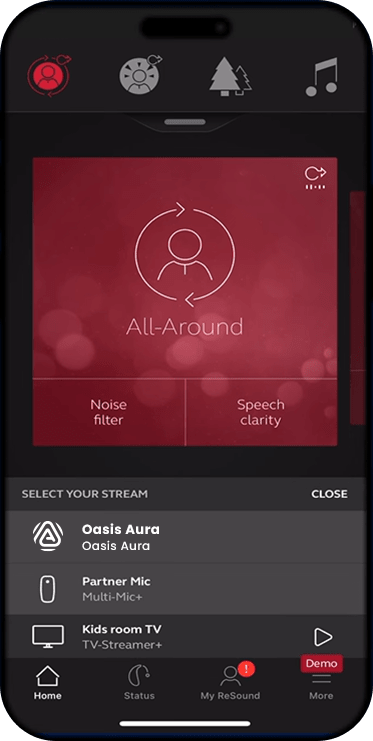
Tap Search or SEE ALL DEVICES.
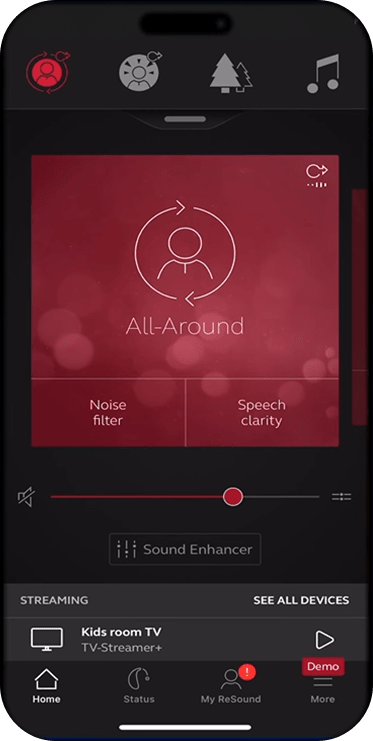
Choose the broadcast you want. Once joined, you will hear its audio.
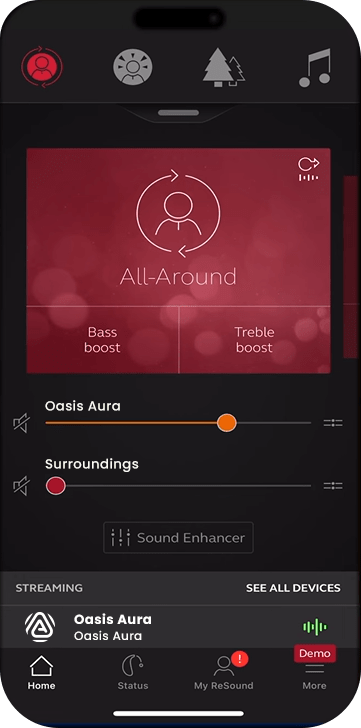
Set the stream to a comfortable level.
TROUBLESHOOTING
Match what you hear, try the action, then check the expected result.
Recognize: the broadcast appears selected, but your hearing aids are silent.
Expected: broadcast audio plays through both hearing aids. If it does not, restart the broadcast source and repeat the scan.
Recognize: broadcast audio plays, but room sound makes it difficult to understand.
Expected: the broadcast becomes clearer without uncomfortable loudness.
Recognize: the same broadcast reaches you through your hearing aids and a nearby speaker at slightly different times.
Expected: only one synchronized audio path remains.