
- Sound OutputOptical / External Speaker / Audio System
- Digital Audio Format
✓ Use PCM or Stereo.
Do not use Dolby, DTS, Auto or Bitstream.These may produce silence.
- Play audioPlay a TV program with speaking voices.
TV
→ Transmitter
 Headphones
Use the included Opera transmitter. Your headphones are pre-paired.
 Clear dialogueUp to 35 hours
Step 1 of 4 · Cable
Connect your TV
Find an audio OUT port on your TV. Choose one cable below.
Using an AV receiver or TV box?
AV receiver: connect its headphone output to Opera AUX IN. A 6.35-to-3.5 mm adapter may be needed; speaker playback may stop.
TV box: its audio output can feed Opera, but you will only hear content played by that box.
Optical port occupied: see soundbar passthrough.
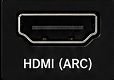
Opera has no HDMI input. For an HDMI-only TV, use a compatible HDMI ARC-to-Optical extractor such as HAX06, then select OPT on Opera and PCM/Stereo on the TV. The extractor needs its own setup.
Not sure? Take a photo of your TV ports.
Contact Support →Connect the Optical cable
Watch: connect Opera using OpticalOpen video in a new tab ↗
- Remove the clear protective caps from both cable ends.
- TV: plug into OPTICAL / DIGITAL AUDIO OUT.
- Opera transmitter: plug into Optical port in Input From TV.
- Set the transmitter input switch to OPT.
Ready: Both square plugs are fully inserted and the input switch points to OPT.
Connect the AUX cable
Watch: connect Opera using AUXOpen video in a new tab ↗
- TV: plug into HEADPHONES / AUDIO OUT.
- Opera transmitter: plug into AUX port in Input From TV.
- Set the transmitter input switch to AUX.
- Raise the TV volume to a normal level.
Ready: Both round plugs are fully inserted and the input switch points to AUX.
Step 2 of 4 · Power
Power on the transmitter and headphones
Watch: power on and connect OperaOpen video in a new tab ↗
- Connect the supplied USB-C power cable to the Opera transmitter and a working 5 V USB wall power adapter.
- Slide the transmitter and headphone power switches to ON. Keep both devices close together.
- Wait for the LEDs on both devices to turn solid blue.
✓
Connected? Both LEDs are solid blue. Set the TV sound next →
Connected does not mean TV audio is ready; finish the TV settings.
No light? Reseat both USB cable ends and try another working wall power adapter. Lights flash but never connect?
First use or headphones will not turn on?
Place the headphones on the powered charging dock and align the contacts. The dock indicator is red while charging (orange on some versions). When the headphones can turn on, continue setup.
Watch: charge Opera on the dockOpen video in a new tab ↗
Full charging help →Step 3 of 4 · TV sound
TV sound settings
Use your TV remote.
Choose your cable in Step 1 to see the matching TV settings.
Open Settings → Sound
- Sound OutputHeadphones or Audio Out
- VolumeRaise the TV volume to a normal listening level.
No PCM setting is needed for AUX.
- Play audioPlay a TV program with speaking voices.
Find PCM steps for your TV brand
TV speakers + headphones?Check TV compatibility and steps →
Step 4 of 4 · Listen
Listen to your TV
After completing the TV sound settings:
- Play a TV program with speaking voices.
- Put on the headphones. Press + or − to adjust volume slowly.
- Check that you hear the TV through the headphones.
✓
Success: solid blue light + TV sound.
TV Bluetooth · Higher delay
Pair directly with your TV
Audio behind the picture? Use the recommended transmitter setup.
Turn the transmitter OFF
Leave the dock powered for charging. Keep its power switch OFF so the headphones do not reconnect to it.
Put Opera in pairing mode
Turn the headphones ON. Hold the headphone power switch in PAIR for 3 seconds, until the LED flashes red and blue.
Select Avantree AS90C
Open the TV’s Bluetooth audio device list and select Avantree AS90C. On supported Samsung TVs: Settings → Sound → Sound Output → Bluetooth Speaker List.
Play and check TV sound
Wait for solid blue, then play a program and raise headphone volume slowly. If silent, select AS90C as the TV sound output. If audio is delayed, use the transmitter.
Success: solid blue + TV sound
No TV Bluetooth?
Daily use
Adjust volume
- Adjust headphone volumePress or hold + / −. Start low and raise slowly.
- Check TV volume for AUXRaise the TV’s headphone / analog output volume if adjustable. Optical volume may be fixed.
- Choose clearer speechPress EQ once to switch between Balanced and Clear Voice. Keep the setting that makes dialogue easier to follow.
- Check MuteIf the mute indicator is orange, move the Mute/Unmute switch to unmute.
Check: speech is audible at a comfortable level. If still too quiet, open Not loud enough. Opera has no VOL Boost switch.
Independent Bluetooth use
Use with a phone or PC
Turn off the Opera transmitter first.
- Turn the transmitter OFFTurn off Bluetooth on a previously connected TV or nearby device if it keeps reconnecting.
- Hold the headphone switch in PAIRWith Opera ON, hold PAIR for 3 seconds until red and blue flash.
- Select Avantree AS90COpen phone, tablet or PC Bluetooth settings and select Avantree AS90C.
- Play audioSolid blue means connected. Confirm sound in Opera. If silent, select AS90C as the device audio output and check mute and volume.
Daily use
Charge the headphones
Use the powered dock or the headphones’ USB-C charging port.
Place Opera on the powered dock
- Connect the dock to a working USB wall power adapter.
- Align the headphone charging contacts with the dock contacts.
- Check the transmitter charging indicator: red means charging; it turns off when complete. Some hardware versions use orange while charging and green when full.
Not charging? Reseat the headphones so the contacts touch, check dock power, or connect USB-C directly. For USB-C charging, the headphone LED stays red while charging and turns off when full.
Battery reference
Up to 35 hours of playtime. Actual time varies with volume and use.
Daily use
Use a soundbar too
Match the input and output cable.
Optical in → Optical out
AUX in → AUX out
- Get headphone sound using Optical or AUX.
- Connect the matching Output To Speaker port to the soundbar.
- Select that input on the soundbar and play TV audio.
HDMI soundbar passthrough is not supported. Check an extractor setup with Support →
Reference
Connections and lights
Add a second pair of Bluetooth headphones
Opera supports two Bluetooth headphones. The second pair must support Bluetooth audio; latency depends on the combination. Follow the second headphones’ own pairing instructions.
- Turn the TV OFF. Turn on Opera and wait for both LEDs to become solid blue.
- Turn off the first headphones; leave the transmitter ON.
- Put the second headphones in their documented pairing mode.
- Hold the Opera transmitter switch in PAIR until red and blue flash. Keep the second headphones close until connected (transmitter solid blue).
- Turn all three devices OFF. Turn on the transmitter, first headphones, then second headphones.
Done: play TV audio and confirm sound in both pairs. If one does not reconnect, press its play button or briefly slide and release the transmitter PAIR switch; wait 5–10 seconds.
Full second-headphone guide →Buttons, lights and compatibility
Product: Opera / HT6190. Bluetooth device name: Avantree AS90C.
- Headphone / transmitter flashing blue
- Powered on, not yet connected.
- Solid blue
- Bluetooth connected. Play audio to check that the correct source is connected.
- Red and blue flashing
- Pairing mode.
- Headphone flashing red
- Low battery: charge the headphones.
- Headphone solid red
- Charging; off when fully charged or powered off.
- Headphone orange mute indicator
- Muted. Move Mute/Unmute to unmute.
- Transmitter white audio indicator
- Solid: valid audio signal. Flashing: no valid audio signal; check cable, selected input and PCM for Optical.
- Input selector
- Select OPT for Optical, AUX for 3.5 mm or RCA-to-AUX. MIX is not needed for these TV setup paths.
- Supported TV audio inputs
- Optical and AUX. RCA AUDIO OUT works through an RCA-to-3.5 mm cable into AUX.
- Not supported directly
- HDMI input, HDMI passthrough, Dolby/DTS digital audio. Use PCM/Stereo for Optical.
- Playtime / range / weight
- Up to 35 hours / up to 50 m in open conditions / headphones 245 g. Walls and interference reduce range.
Reconnect on the next use
Turn on the Opera transmitter and headphones. They normally reconnect automatically if the headphones have not paired with another device. If not, briefly slide and release the headphone switch to PAIR.
Done: solid blue and TV sound. Still disconnected? Open connection help. For direct TV Bluetooth, keep the transmitter OFF and select Avantree AS90C in the TV list if needed.
Reset and lock the Opera set
Use this after normal reconnection fails. Reset clears saved pairings; pair again afterward.
- With the transmitter ON, hold its power switch in PAIR until red and blue flash. Hold PAIR again until the LED turns pink.
- With the headphones ON, hold + and − together until the LED turns pink. The headphones then flash red and blue for pairing.
- Keep both close in pairing mode until both show solid blue.
- Hold the transmitter LOCK button for 10 seconds, until the LED turns pink, to lock the headphones for automatic reconnection.
Done: play TV audio and confirm sound. If either light never reaches the described state, stop and contact Support.
Troubleshooting details
No sound after setup
Likely condition: the TV output, cable, transmitter input, or audio format does not match.
- Turn the Opera transmitter and headphones ON. Check both for solid blue; if not, open connection help.
- Confirm the cable uses the TV AUDIO OUT and the transmitter input switch matches it.
- For Optical, select Optical output and set Digital Audio Format to PCM / Stereo, not Dolby, DTS, Auto or Bitstream. For AUX / RCA, check analog output volume.
- Play a program with speaking voices.
- Move the headphone Mute/Unmute switch to unmute if its indicator is orange. Raise headphone volume slowly.
Expected result: solid blue light and TV sound in the headphones.
Still not working? Contact Support with your TV model, connection type, indicator lights and steps tried.
Headphones will not connect
Possible cause: Opera reconnected to a nearby TV, phone or computer, or the saved pairing needs recovery.
- Turn off Bluetooth on nearby previously paired devices.
- Turn the Opera transmitter and headphones OFF, then ON. Keep them close.
- If not connected, hold each device’s power switch in PAIR until red and blue flash.
- Wait for both LEDs to turn solid blue. Play TV audio.
Expected result: both show solid blue and TV audio plays. Still disconnected? Follow reset and lock, then contact Support if unresolved.
Still not working? Contact Support with your TV model, connection type, indicator lights and steps tried.
No light on the transmitter
Likely condition: the transmitter is not receiving power.
- Reconnect the USB-C plug at the transmitter.
- Reconnect USB-A to a working 5 V, 1–2.4 A power adapter.
- Try another USB power adapter or cable.
- Slide the transmitter switch to ON.
Expected result: the transmitter power light turns on.
Still not working? Contact Support with your TV model, connection type, indicator lights and steps tried.
TV speakers stopped working
Condition: some TVs mute their speakers when an external audio output is selected.
- Open the TV Sound settings.
- Look for TV Speaker + Optical, Simultaneous Audio, or a similar setting.
- For AUX, check whether the TV headphone jack automatically mutes its speakers.
Expected result: both play only if the TV supports simultaneous audio.
Still not working? Contact Support with your TV model, connection type, indicator lights and steps tried.
Not loud enough
Possible cause: headphone volume or the TV analog output level is low, mute is enabled, or speech is difficult to distinguish.
- Raise volume with the headphone + button.
- For AUX, raise the TV volume to a normal listening level.
- Check the headphone Mute/Unmute switch, then press EQ to try Clear Voice. Compare speech at a comfortable volume.
Expected result: speech plays louder through the headphones.
Still not working? Contact Support with your TV model, connection type, indicator lights and steps tried.
Headphones will not charge
Likely condition: the dock has no power or the charging contacts do not touch.
- Power the dock with a 5 V / 1 A wall adapter.
- Wipe the charging contacts with a clean, dry cloth.
- Reseat the headphones until the contacts touch, or connect USB-C directly.
- Try another wall adapter and cable if the charging indicator does not respond.
Expected result: the dock charging indicator is red (orange on some versions), then off (green on some versions) when charged. If the headphones’ own LED is used for USB-C charging, solid red means charging and off means full.
Still not working? Contact Support with your TV model, connection type, indicator lights and steps tried.
Audio delay or sound cutting out
Possible cause: direct TV Bluetooth delay, distance, obstacles or wireless interference.
- For direct TV Bluetooth delay, switch to the included Opera transmitter via Optical or AUX.
- Move closer to the transmitter and away from other wireless equipment. Keep the transmitter clear of obstacles.
- Play the same program and compare sound with the picture.
Expected result: stable sound and reduced delay with the included set. If not, contact Support with the connection type and any second headphone model.
Still not working? Contact Support with your TV model, connection type, indicator lights and steps tried.
Soundbar not playing
The input/output cable types or soundbar input may not match.
- Use Optical in → Optical out or AUX in → AUX out on Opera.
- Select the connected input on the soundbar, then play TV audio.
The headphones and soundbar should both play. If not, contact Support with the TV and soundbar model.
Quick fixes