Skip to guide
IT

Interactive user guide

Medley Pebble 2 Setup Guide

TV Audio Setup

Connect the transmitter to your TV, then listen with the earphones.

1

STEP 01

Choose Your TV Audio OUT

Find one TV port labelled AUDIO OUT.

TASKChoose the first available option below.

  1. Check the TV labels

    Use an OUT port, never an IN port.

  2. Choose Optical first

    Use OPTICAL or DIGITAL AUDIO OUT when available.

    TV Optical Digital Audio Out square port
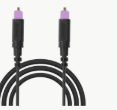
    Optical cable
    Optical cablePurple tips
  3. No Optical? Use AUX

    HEADPHONES / AUX OUT / AUDIO OUT

    TV Headphones audio output round port
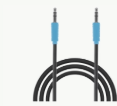
    AUX cable
    AUX cableBlue ends
  4. Otherwise use an adapter

    RCA: use an RCA-to-3.5 mm adapter.
    HDMI ARC/eARC: use the Avantree HAX06 HDMI ARC adapter .

DONEYou have chosen one TV audio output.

IF NOTSend Support a clear photo of all TV ports with the TV brand and model.

2

STEP 02

Connect Medley Pebble 2 To The TV

Power the transmitter, then connect one audio cable.

TASKConnect the cable chosen in Step 01.

  1. Power on

    Connect USB-C power, then slide the switch to ON.

  2. Connect Optical

    Use the purple square-ended cable: TV OPTICAL OUT → Medley Pebble 2 OPT IN.

    Connect Optical
  3. Or connect AUX

    Use the blue round-ended cable: TV HEADPHONES / AUDIO OUT → Medley Pebble 2 AUX IN.

    Or connect AUX

DONEMedley Pebble 2 is on and connected to the TV.

IF NOTRecheck that both ends are fully inserted and the TV port is labelled OUT.

3

STEP 03

Set Optical Audio To PCM

Optical users must set the TV to PCM. AUX users can skip this step.

TASKSet the TV's Optical audio format to PCM.

  1. Open Sound settings

    On the TV remote, open Settings → Sound.

  2. Choose Optical output

    Select Optical, External Speaker or Audio System.

  3. Choose PCM

    Set Digital Audio Format to PCM or Stereo.

    Open the TV PCM guide→Want TV speakers on too?→

DONEThe TV output is Optical and the format is PCM or Stereo.

IF NOTOpen the brand-by-brand PCM guide for the exact TV menu path.

4

STEP 04

Listen With Earphones

  1. Remove the earphones from the transmitter.
  2. Wear the earphones to hear your TV.

DONEEarphone LEDs: solid orange for 3 seconds, then off. TV sound plays.

Not connected? ReconnectNo sound? Get help

Volume

Adjust Volume

  1. Tap + or −

    Use either earphone. The change applies to both.

  2. Adjust TV volume

    Optical: volume may be fixed.
    AUX: raise the TV volume if needed.

  3. Still too low?

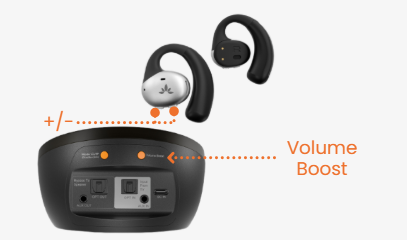
    Optical only: after maximizing the other volume controls, press Volume Boost once.

Medley Pebble 2 earphone volume buttons and transmitter Volume Boost control
Still too quiet? See volume fixes

More Ways To Use — Optional

Direct Bluetooth

Use As Bluetooth Earphones

Connect directly to a phone, PC or Bluetooth TV without the transmitter.

For TV use, your TV must support Bluetooth audio.

  1. Turn the transmitter OFF

  2. Remove the earphones

    LEDs flash red and blue.

    If not, hold Volume + on either earphone for 5 seconds.

  3. Open your device’s Bluetooth settings

    Turn on Bluetooth and search for audio devices.

  4. Select Medley Pebble 2

    Play audio.

Phone + TV

Dual Mode: Never Miss A Call

Stay connected to your phone while listening to TV audio.

Earphones connected to the TV transmitter by Auracast and to a phone by Bluetooth

Incoming call?

TV audio pauses automatically.
It resumes when the call ends.

Set up Dual Mode

  1. Pair the earphones with your phone.
    Turn the transmitter OFF, then follow Use as Bluetooth Earphones
  2. Turn the transmitter back ON.
    The earphones reconnect to TV audio and stay linked to your phone.

More listeners

Add More Earphones

For additional Pebble Aura earphones.

  1. Pair the transmitter

    Hold MODE for 2 seconds. The MODE LED flashes orange rapidly.

  2. Pair the earphones

    On either earphone, hold Volume − for 5 seconds. The LED flashes orange rapidly. Keep them close.

  3. Confirm connection

    Transmitter: solid orange.
    Earphone: solid orange for 3 seconds, then off.

Auracast hearing aids

Use With Hearing Aids

Medley Pebble 2 works with Auracast-enabled hearing aids.

Check device compatibility

  1. Check the Mode light

    White is the default mode for hearing-aid support.

    Double-press the transmitter MODE button when the Mode light is not white
    Use the MODE button only when the Mode light is not white.
  2. Not white?

    Double-press the transmitter MODE button.

  3. Join on your hearing aids

    Select the Medley Pebble 2 broadcast in your hearing-aid app or Auracast controls.
    See how to join an Auracast broadcast

DONE The Mode light is white and TV audio plays through your hearing aids.

Daily use

Use A Soundbar And Earphones Together

Use matching Optical or AUX connections.

Medley Pebble 2 transmitter Optical and AUX input and bypass output ports
OPT IN → OPT OUT, or AUX IN → AUX OUT.
  1. Get headphone sound with Optical or AUX.
  2. Connect the matching OUT to the soundbar.
  3. Select that input on the soundbar.

    Sound plays through the earphones and soundbar.

HDMI ARC soundbar? Use the HAX06 extractor

QUICK HELP

Fix The Common Problems

No sound Low volume
Earphones disconnected from the transmitter
  1. Transmitter: Hold the MODE button for 2 seconds. The MODE LED flashes orange rapidly.                                          
  2. Earphones: Hold Volume − for 5 seconds on either earphone. The LED flashes orange rapidly. Keep both earphones close to the transmitter.                                    

DONEThe earphone LED turns solid orange for 3 seconds, then turns off.

Earphone volume buttons and transmitter Volume Boost control