
FitLock Aura · BTHS-TW130R
FitLock Aura
Setup Guide
Connect to Bluetooth devices or Auracast broadcasts
 Bluetooth + Auracast
First-time setup
Activate the earbuds
Do these three steps once before connecting
Take both earbuds out of the case. Peel the protective film off their charging contacts.
Seat both earbuds fully in the case.
Close the lid and wait 5 seconds. Your earbuds are ready to connect.
Start setup
Choose how you want to listen
Connect with Bluetooth
Take both earbuds out of the case.
Pairing: the LED flashes red and blue.
No red and blue flash? Hold the + button on the red (right) earbud for 5 seconds.
Open Bluetooth settings on your device and select FitLock Aura.
Connected: the LED turns solid blue.
Play audio and check that both earbuds have sound.
Join an Auracast broadcast
-
Download the Avantree app from the App Store or Google Play.



Pair FitLock Aura in your phone’s Bluetooth settings.
Open the Avantree app, tap to add a device, and select FitLock Aura.
Tap Auracast and select the broadcast you want.
Encrypted broadcasts only
Enter the broadcast password when prompted.
Joined: you can hear the broadcast through the earbuds.
Broadcast not playing?
- Check that FitLock Aura is connected to your phone by Bluetooth. Then select the broadcast again in the app.
- If the broadcast is encrypted, check the password.
To rejoin later: open the Avantree app, tap Auracast, and select the broadcast again.
How to wear
Lock in a secure, comfortable fit
Choose ear tips that seal comfortably in each ear.
Place one FitLock Aura earbud in each ear.
Settle each ear hook around your ear. The fit should feel secure without pressure.
Adjust volume
Change the volume one step at a time
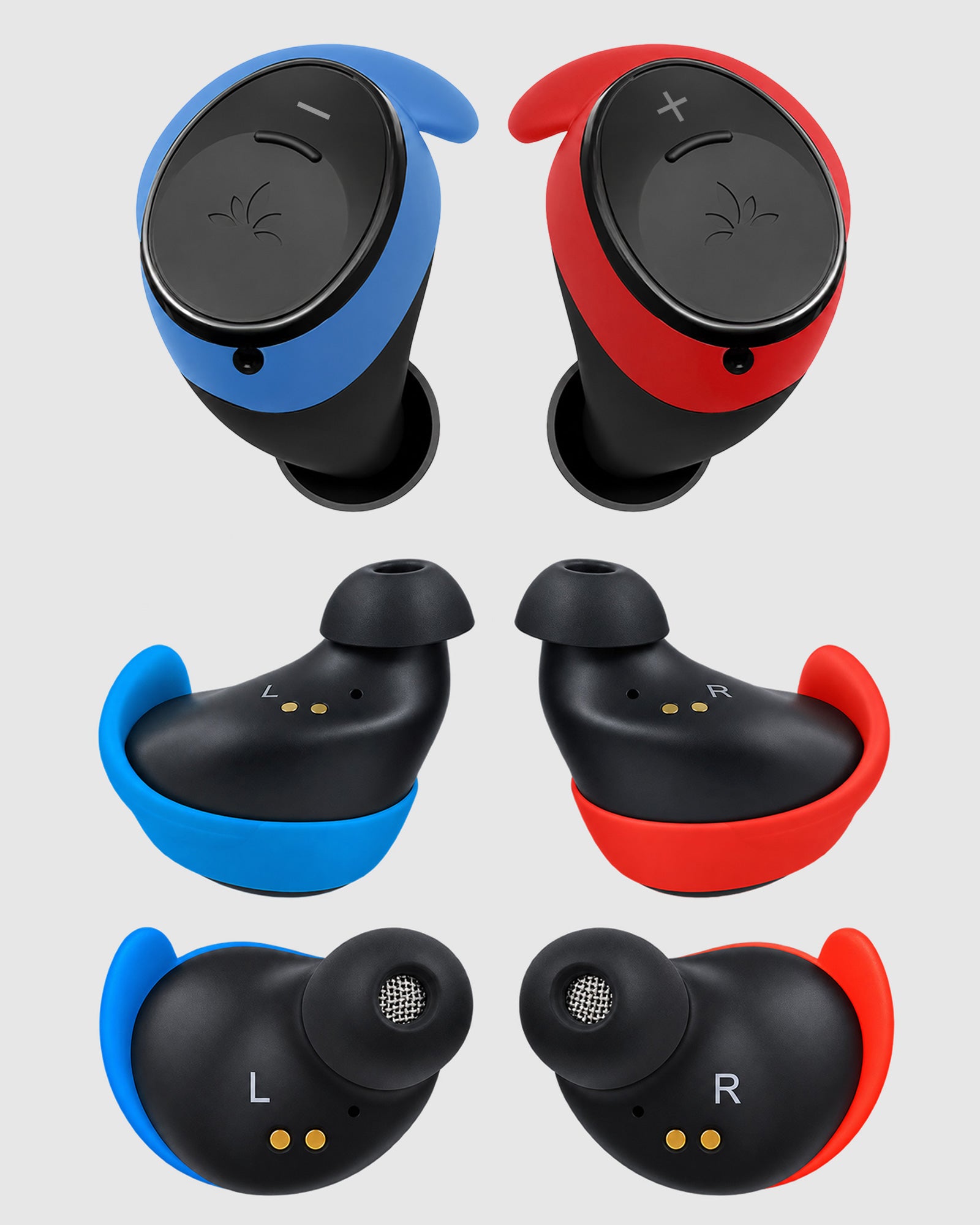
Put on at least one earbud and play audio.
Volume down: Short-press the − button on the blue earbud.
Volume up: Short-press the + button on the red earbud.Repeat one press at a time until the volume feels comfortable.
Dual mode
Never miss a phone call while listening to Auracast
Keep FitLock Aura connected to your phone by Bluetooth.
Join the Auracast broadcast in the Avantree app.
Call did not interrupt the broadcast? Confirm FitLock Aura is still connected to the phone by Bluetooth. Reconnect it, then join the Auracast broadcast again.
Charging
- Power source5 V, 1–2.4 A USB
- Solid redCharging
- LED offFully charged
- Charging timeAbout 2 hours
- PlaytimeUp to 10 hours; up to 36 hours with the charging case
Firmware update
Update FitLock Aura in the app
The app will notify you automatically when a new version is available.
Pair and connect FitLock Aura in your phone’s Bluetooth settings.
Open the Avantree-Avantalk app. Get the app if needed.
If the app offers an update, follow the on-screen instructions.
Fix a problem
Choose what is going wrong
Bluetooth device cannot find FitLock Aura
Possible cause: the earbuds are not in Bluetooth pairing mode or are too far from the phone, computer, or TV.
Move FitLock Aura close to the Bluetooth device.
Hold the + button on the red (right) earbud for 5 seconds.
Wait for the LED to flash red and blue, then select FitLock Aura in the Bluetooth list.
Expected result: the LED turns solid blue and audio plays through both earbuds. If it does not, repeat the Bluetooth setup or contact support below.
Cannot join an Auracast broadcast
Possible cause: the earbuds are not connected to the phone, the broadcast was not selected, or the password for an encrypted broadcast is incorrect.
Confirm FitLock Aura is connected to your phone by Bluetooth.
Open the Avantree app and select FitLock Aura.
Tap Auracast, then select the broadcast again.
For an encrypted broadcast, re-enter the password when prompted.
Expected result: the selected broadcast plays through both earbuds. If it does not, reconnect FitLock Aura to the phone and repeat these steps.
Connected, but there is no sound
Possible cause: playback is paused, the source or earbud volume is too low, or the wrong listening mode is active.
Start playback on the connected source.
Turn up the volume on your source. Then short-press the + button on the red (right) earbud to raise the earbud volume one step at a time.
For Bluetooth, confirm the LED is solid blue. For Auracast, confirm the orange LED is solid for 3 seconds and then turns off.
If the matching indicator does not appear, reconnect using the Bluetooth or Auracast setup above.
Expected result: audio plays through both earbuds. If there is still no sound, contact support below.
Only one earbud has sound
Possible cause: the two earbuds did not start or reconnect together.
Place both earbuds in the charging case.
Wait a few seconds, then remove both earbuds together.
Reconnect FitLock Aura and start audio.
Expected result: audio plays through both earbuds. If one side is still silent, contact support below.
Need more product help
Possible cause: additional product-specific diagnosis may be required.
Solution: open the official FitLock Aura Support page for current FAQs, troubleshooting, accessories, warranty, and firmware information.
Expected result: you reach the FitLock Aura support resources or the contact options below.