Check your app version
Requires 1.39.0 or newer. Update from your app store if needed.


Interactive user guide
Select your model to see the setup steps.
Note: Enhance Select M1, M2, and M3Jabra advertises Auracast support. Official steps for joining a broadcast aren’t available.
Don’t see your model? Your model may need a different way to receive Auracast. See other ways to connectChoose your hearing aid model to see the setup steps.
SETUP PATH
Requires 1.39.0 or newer. Update from your app store if needed.
Pair your hearing aids with your phone and open the app.
Under More, turn on Auracast Assistant.
Check that your hearing aids are paired and the app is version 1.39.0 or newer. If the option is still missing, check Jabra’s compatibility guide.
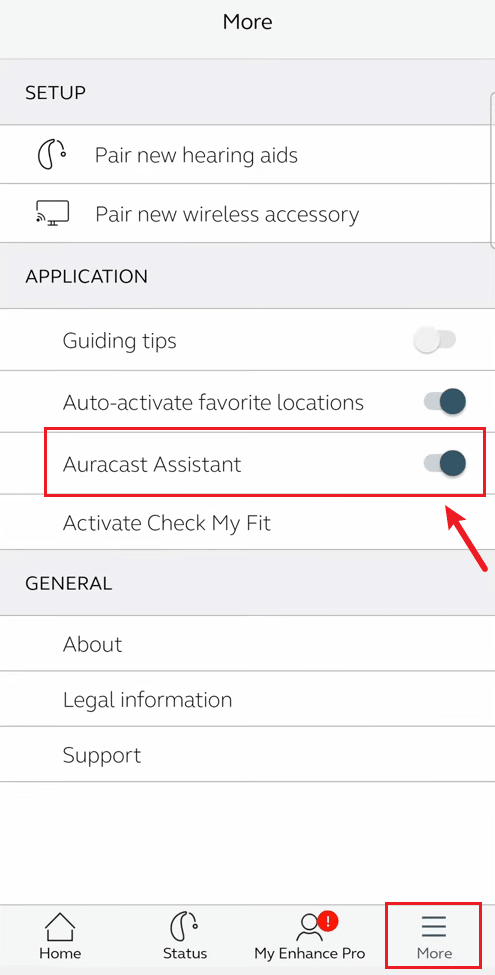
Before you start: Make sure an Auracast broadcast is active nearby.
Go to Home and look for Streaming, Audio, Broadcast, or a connection icon.
Check the bottom menu, top icons, or a pop-up.
Confirm the broadcast is active and move closer to the source, then check Home again.
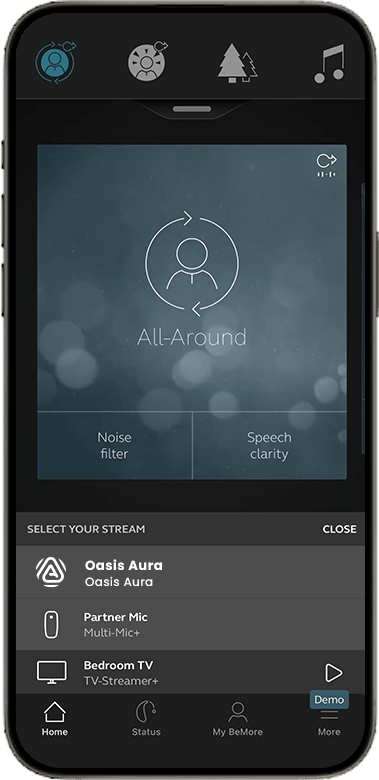
Tap the broadcast you want to hear.
What to expect: Audio plays through your hearing aids.
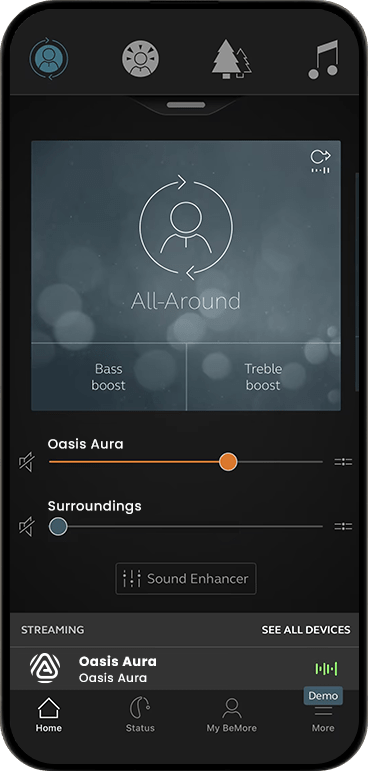
Check the broadcast volume in the app. If there’s still no sound, see Common issues.
Set the stream to a comfortable level.
Still having trouble? Fix a problem →
SETUP PATH
Connect your hearing aids to the compatible phone via Bluetooth.
Turn on LE Audio on your phone. Tap Listen to Auracast broadcast, then choose the broadcast.
Confirm the broadcast is active nearby and LE Audio is on. If the listening option is missing, check phone compatibility.
If the broadcast is locked, enter its passcode.
What to expect: Audio plays through your hearing aids.
Check that the broadcast is selected and your hearing aids are connected. If there’s still no sound, see Common issues.
Still having trouble? Fix a problem →
TROUBLESHOOTING
Select the issue you’re experiencing.
See Hearing Aids Auracast FAQ & Troubleshooting for model-specific checks.
In the Jabra app, adjust broadcast volume. Then lower or mute Surroundings volume.
See Hearing Aids Auracast FAQ & Troubleshooting for model-specific checks.