- Choose how you want to listen
- Set Digital Audio Format to
- PCM or Stereo
Avoid Dolby, DTS, Auto or Bitstream.
These may cause silence.

Interactive user guide
Connect by Optical, AUX or RCA, then listen through the included wireless neckband earbuds.
 Transmitter
 Earbuds
Use the included transmitter. Your NB16-Q earbuds are pre-paired.
Requires Bluetooth headphone support.
 Pre-pairedUp to 20 hours
Recommended kit setup
Step 1 of 4 · Cable
Check the labels beside the ports, then choose the first match below.
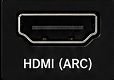 Only HDMI ARC / eARC?Use HAX06 Converter
Use an RCA-to-3.5 mm adapter cable (not included).
Not sure? Take a photo of your TV ports.
Contact Support →Requires: an RCA-to-3.5 mm adapter cable, not included.
Red / white AV IN sockets will not work.
The TV audio OUT connects to the transmitter AUX input.
No AUDIO OUT label? Choose another connection.
Next: power on the devices →
Both square plugs are fully inserted.
Do not force the cable into the port.
Next: power on the devices →
Both round plugs are fully inserted.
The TV may mute its speakers when you use its headphone jack.
Next: power on the devices →
Step 2 of 4 · Power
Next: set the TV sound in Step 3 →
Otherwise, no sound.
No transmitter light: reseat both USB cable ends and try another USB power source. More power help →
No earbud light: charge the earbuds, then unplug the charging cable before use.
Both on, but not connected: re-pair the earbuds and transmitter →
USB power: USB-C connects to the transmitter; USB-A connects to TV USB or a 5 V / 500 mA–2 A adapter. Keep USB power connected during use.
Connection check: the earbud LED and transmitter listener 1 indicator should both be solid blue. If the earbuds are already ON, leave them on.
Step 3 of 4 · TV sound
Choose your cable in Step 1 to see the matching TV settings.
These may cause silence.
Using RCA? Check your TV manual for the audio OUT setting.
Step 4 of 4 · Listen
After completing the TV sound settings:
turn the transmitter ON. If the earbuds are OFF, hold their MFB for 3 seconds.
If automatic reconnection fails, press the earbud MFB once or transmitter listener 1 once.
Re-pair if needed.
DIRECT TV BLUETOOTH
Requires a TV that supports Bluetooth headphone audio.
This route may have more sound delay than using the included transmitter.
On supported Samsung TVs: Home → Settings → Sound → Sound Output → Bluetooth Speaker List.
Done: the earbud LED is solid blue and you hear TV sound.
If not: verify the TV supports Bluetooth audio, return the earbuds to red / blue pairing mode and retry.
If your TV has no Bluetooth audio list, use the transmitter setup →
Turn on the earbuds.
If needed, press MFB once or select the saved earbuds in your TV Bluetooth list.
Re-pair if you used another device.
Possible cause: HT4186-Q is connected wirelessly, but the TV output, audio format, cable or volume is wrong.
For transmitter setup, a solid white input indicator confirms a valid TV audio signal.
Solid blue confirms Bluetooth only.
Expected: the earbud LED stays solid blue and TV speech plays through the earbuds.
Still silent? Contact Support with the cable type and both LED states.
Possible cause: the earbuds have connected to another device, or pairing / locking needs to be restored.
For this recovery, keep the transmitter powered while the TV is OFF.
If it uses TV USB, move it to a USB wall adapter first.
Then turn the TV OFF and nearby phone Bluetooth off.
Expected: both devices reconnect with solid blue lights.
Turn the TV back ON, restore normal transmitter power and confirm TV sound.
If not: reset both devices, then repeat pairing and locking.
Full HT4186-Q re-pair and lock guide.
Unplug before listening.
Reconnect the cable.
Try another 5 V USB source and USB-C cable.
Expected: solid red appears.
Still no light? Contact Support.
Allow about 2–2.5 hours to fully charge. Up to 20 hours of use; actual time varies with volume and use.
Only the earbuds have a rechargeable battery.
The transmitter needs continuous USB power.
Turn the transmitter OFF and earbuds OFF.
On the earbuds, hold the MFB for about 5 seconds.
Wait for Red / blue alternating and the “Pairing” prompt.
On your phone or computer, choose Avantree NB16T-Q or NB16T, as displayed.
Adjust the volume on the earbuds.
Ready whenSolid blue and audio plays through the earbuds.
Disconnect other paired devices, then repeat the steps above with your Bluetooth audio phone or computer.
Connected: both connection LEDs are solid blue.
Play TV audio and adjust volume in Step 4 →
Not connected? Re-pair the kit →
Before pairing: turn the TV and nearby phone Bluetooth OFF. Keep the transmitter USB-powered; use a wall adapter if TV USB turns off.
Turn on the transmitter and the earbuds. Wait for Listener 1: solid blue; leave both on.
Put them in pairing mode using their instructions.
Red / blue alternating means pairing. Keep them close until 1 + 2: solid blue.
Play TV audio. Adjust volume on each pair.
Ready whenBoth pairs play TV sound.
Keep the included earbuds connected, turn nearby phone Bluetooth off and repeat pairing for the second headphones.
Some true wireless earbud combinations are less reliable.
Test each pair alone.
Next time: connect the included earbuds first.
Turn on the second headphones and wait 5–10 seconds.
If they do not reconnect, press transmitter 2 once.
Second pair only: connect the original pair, connect the second, then turn the original pair OFF.
HT4186-Q supports up to two Bluetooth listening devices.
One pair of earbuds is included; a second pair is sold separately.