
 AuraGo
1 Connect your headphones
- Plug in your headphonesUse AuraGo’s 3.5 mm jack. For a 2.5 mm plug, use the included adapter.
-
Turn on AuraGoSlide the side switch to the solid dot (●), the middle position.
If AuraGo won’t power on, charge it with USB-C.
2 Choose how to listen
Fix a problem
Connected but no sound
- Check the plugPush the headphones fully into AuraGo’s 3.5 mm jack.
- Check playback and volumePlay audio. Slowly turn up the volume on AuraGo and your source.
-
Check the audio outputBluetooth or LE Audio
Select Avantree AS70P as the output if available.
Auracast
Check that the broadcast is playing and you joined the right channel.
Listen for: audio through your wired headphones.
Still silent? Try another pair of headphones, then contact support.
Bluetooth won’t connect
- Put AuraGo in pairing modeHold the power switch toward the Bluetooth symbol for 2 seconds. Look for flashing red and blue.
- Reconnect from your sourceRestart Bluetooth on your source and select Avantree AS70P.
- Clear old pairings if neededForget AuraGo on your source, clear AuraGo’s pairing history and pair again.
Listen for: audio through your wired headphones. A solid blue light shows AuraGo is connected.
Still stuck? Contact support with the source model and light pattern.
Auracast broadcast doesn’t appear
- Check the broadcastConfirm the transmitter is broadcasting and move closer.
- Try an open broadcast againTurn AuraGo off and back on. If it joins the wrong channel, hold + for 2 seconds.
- Enter the password if requiredUse the Avantree–Avantalk app to select the broadcast and enter its password.
Listen for: the broadcast you want through your wired headphones.
Still stuck? Contact support with the transmitter model, broadcast name and AuraGo light pattern.
LED stays on after switching off
A steady red light while plugged in means AuraGo is charging.
- Connect AuraGo to USB powerLeave it plugged in for a few minutes.
- Restart AuraGoSwitch it off, then on.
- Check the power switchUnplug USB power and check that the switch controls power normally.
If the light stays on while AuraGo is unplugged and switched off, contact support.
Reference
Charge AuraGo
Connect the included USB-C cable to AuraGo and USB power. The LED stays red while charging and goes out when fully charged. A full charge takes about 2 hours. Flashing red alone indicates low battery. If the LED stays off and AuraGo won’t power on, try another USB power source and cable.
Buttons and indicator lights
AuraGo (AS70P) controls
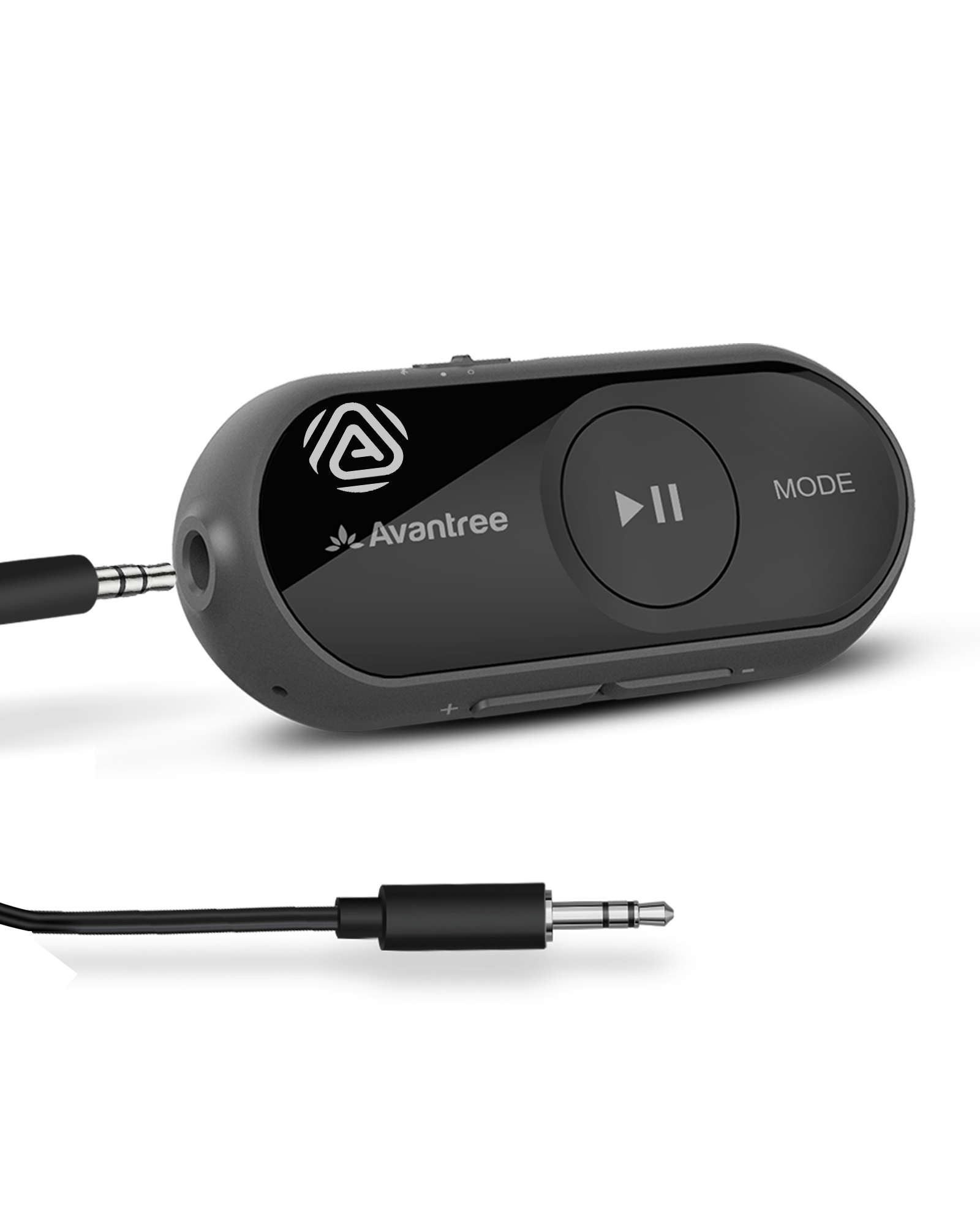
- Power / Bluetooth switch
- Slide to ● for power on. Hold toward the Bluetooth symbol for 2 seconds to pair.
- Volume + / −
- Press once to change volume. In Auracast, hold + for 2 seconds to move to the next broadcast.
AuraGo LED meanings
- Flashing red and blue
- Ready to pair with Bluetooth or LE Audio.
- Solid blue
- Connected via Bluetooth or LE Audio.
- Solid white
- Joined an Auracast broadcast.
- Orange during a channel change
- AuraGo can show orange when changing broadcasts. Listen for the intended channel to confirm the switch.
- Flashing red alone
- Battery low.
- Solid red while plugged in
- Charging. The light goes out at full charge.
Compatible devices
- Headphones
- Wired 3.5 mm headphones or earbuds. For a 2.5 mm plug, use the included adapter.
- Hearing aids and wireless headphones
- AuraGo does not pair with hearing aids or transmit wirelessly to headphones. AuraGo receives audio and sends it out through its wired audio jack.
- Calls
- AuraGo uses its built-in microphone. It does not use the microphone on your wired headset.
- Audio sources
- Bluetooth audio source, active Auracast broadcast, or a source with direct LE Audio support.
Clear Bluetooth pairing history
Use this when normal Bluetooth pairing recovery fails. Clearing AuraGo’s saved pairings means you’ll need to pair again.
- Turn on AuraGo.
- Hold the AuraGo + and − buttons together for 5 seconds.
- Wait for the LED to flash red and blue. Then select Avantree AS70P on your source to pair again.
If the LED does not flash red and blue, contact support with the LED pattern you see.
Update AuraGo firmware
Open the official AuraGo (AS70P) updater to check the available version and follow the current on-screen instructions. Let the updater finish before disconnecting AuraGo. If an update fails, contact support with the error and the version shown.