Skip to guide
PDF Guide
PL

Interactive user guide

Audikast 4HA Setup Guide

TV audio setup

Choose a TV audio output, then connect with Auracast or Bluetooth.

Fix a problem
TV
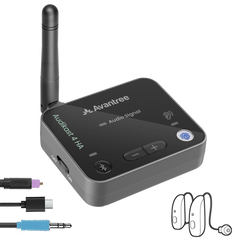
Audikast 4HA TV audio transmitterAudikast 4HA
Hearing aids
or headphones
1

Step 01

Connect your TV

Choose one audio cable: Optical or AUX. Use an audio OUT port on your TV.

Optical

Recommended
TV Optical Digital Audio Out square port
OPTICAL / DIGITAL AUDIO OUT
Audikast 4HA Optical cable with purple square ends
Optical cablePurple tips

Remove both clear cable tip covers.

Watch Optical video

Plug both ends in fully.

TV
OPTICAL / DIGITAL AUDIO OUT
Audikast 4HA
OPTICAL

OR

AUX (3.5 mm)

Use AUX if your TV has no Optical OUT.

TV Headphones audio output round port with blue ring
HEADPHONES / AUX OUT / AUDIO OUT
Audikast 4HA AUX cable with blue round ends
AUX cableBlue ends
Watch AUX video

Plug both ends in fully.

TV
HEADPHONES / AUX OUT / AUDIO OUT
Audikast 4HA
AUX
Only RCA or HDMI ARC/eARC?

RCA AUDIO OUT: Use an RCA-to-3.5 mm adapter and follow the AUX instructions above.

HDMI ARC/eARC: Use the Avantree HAX06 HDMI ARC adapter ↗ and follow the Optical instructions above.

Adapters are separate accessories.

No matching TV output?

Send Support a photo of your TV ports and your TV model.

2

Step 02

Power on Audikast 4HA

  1. Connect power

    Plug the USB-C cable into the Audikast 4HA power port.

    Plug the other end into either:

    • A powered TV USB port
    • A 5 V USB wall adapter
  2. Switch ON

    Slide the power switch to ON.

    Check that the power light turns on.

No lights?

With the switch ON, unplug and reconnect the USB-C cable.

Try another powered USB port or a 5 V USB wall adapter.

Still no lights? Contact Support.

3

Step 03

Step 3 of 4 · TV sound

Set TV sound and check the signalOptical TV settingsAUX TV settings

Follow the instructions for your cable, then check the Audio Signal light.

Optical TV settings

Use your TV remote.
  1. Open Settings → Sound / Audio
  2. Choose how you want to listen

    TV menus vary. See the guide below.

  3. Set Digital Audio Format to

    PCM or Stereo

    See how to set PCM

    Why PCM? PCM is an audio format the transmitter supports.

    Choose your TV brand:

    Avoid Dolby, DTS, Auto or Bitstream.

    These may cause silence.

AUX TV settings

Use your TV remote.

Open Settings → Sound

Sound Output
Headphones or Audio Out

Raise the TV volume.

Want sound from the TV speakers too?

Your TV must support simultaneous audio.

See TV speaker + headphones steps →
No TV sound? Check the Audio Signal light

While TV audio is playing, check that the center Audio Signal light stays solid white.

Optical: Check the TV OUT port and PCM setting.AUX: Check the TV OUT port and raise the TV volume.

5

Step 05

Connect with Auracast

  1. Check the right Auracast light

    Hearing aids: solid white.

    Other Auracast devices: solid orange.

    Light off? Press the right Auracast button once.

    Wrong color? Hold the same button until the color changes.

  2. Play a TV program with sound
  3. Join Audikast 4HA

    Hearing aids: Choose your brand to find Auracast in your hearing-aid app.

    Choose your hearing-aid brandBrand not listed? Check Auracast compatibility

    Other Auracast devices: Open Auracast on your device and select Audikast 4HA.

DoneYou hear the TV through Auracast.

Can’t join or hear the TV?

Check the Auracast and Audio Signal lights, then reopen Auracast and search again.

On first use, the broadcast starts automatically after power-on.

Open hearing-aid connection help →

6

Step 06

Pair Classic Bluetooth

  1. Start Bluetooth pairing

    On first use, press the left Bluetooth button once.

    Check that the light flashes red and blue quickly.

    Light on but steady? Hold the left Bluetooth button until it flashes red and blue.

  2. Put your headphones in pairing mode

    Keep them within 1 m / 3 ft of Audikast 4HA.

    Turning them on may not start pairing.

    Headphone pairing helpChoose brand
    AirPods / AirPods Pro

    Check the back of your case.

    There is a button

    AirPods 1–3 / AirPods Pro 1–2

    1. Open the case with your AirPods inside.
    2. Hold the button on the back for about 5 seconds.
    AirPods case rear setup button held until the front status light flashes white

    The case light flashes white.

    There is no button

    AirPods 4 or 5 / AirPods Pro 3

    1. Open the case with your AirPods inside.
    2. Double-tap the front of the case.
    AirPods 4 or 5, or AirPods Pro 3 case front double-tapped until the status light flashes white

    The case light flashes white.

    AirPods Max

    Press and hold the noise control button for about 5 seconds.

    The status light flashes white.

    Bose
    1. Turn on the headphones or open the earbud case.
    2. Hold the Bluetooth or power button until the light flashes blue or you hear “Ready to connect.”

    The light flashes blue or the voice prompt confirms pairing.

    Beats
    1. Turn on the headphones.
    2. Hold the system or power button until the indicator flashes.

    The indicator flashes for pairing.

    Sony
    1. With the headphones off, hold the power button for about 5 seconds.
    2. For Sony earbuds, use the case or touch-sensor pairing command for your exact model.

    The light flashes blue or you hear “Bluetooth pairing.”

    Samsung Galaxy Buds

    Paired before? Use the manual pairing steps for your model.

    Galaxy Buds3 / Buds3 Pro

    1. Put both earbuds in the case. Close the lid, then reopen it.
    2. Keep both earbuds inside. Hold the Connect button underneath the case for at least 3 seconds.

    The case lights flash green, blue and red.

    Galaxy Buds2 / Buds2 Pro

    1. Put both earbuds in the case. Close the lid, then reopen it.
    2. Keep both earbuds inside. Hold both touchpads together for about 3 seconds.

    The case lights flash.

    Galaxy Buds / Buds+ / Buds Live / Buds Pro

    1. Wear both earbuds.
    2. Touch and hold both touchpads together for a few seconds.

    You hear the pairing tone.

    Other model, or still not pairing?
    Samsung model-specific pairing help →

    JBL
    1. Hold the Bluetooth or power button until the indicator flashes rapidly.
    2. If JBL reconnects to a phone, turn that phone Bluetooth off and try again.

    The indicator flashes rapidly.

    Other headphones
    1. Hold the power, Bluetooth, or main button until the light flashes rapidly.
    2. Check the headphone manual for the exact command if the light does not change.

    The headphones show their documented pairing pattern.

  3. Listen for TV sound

    Wait for the Bluetooth light to turn solid blue.

    Play TV audio and listen through your headphones.

DoneTV audio plays in your headphones.

Headphones won’t connect?

Turn off Bluetooth on nearby phones.

Keep your headphones within 1 m / 3 ft of Audikast 4HA and try pairing again.